Writing instruments are always a sore spot in every office. Nobody can find one when they need one, except for that nasty pen that looks like someone has been chewing on for about a year. Treat your co-workers to the joy of invisible ink by rendering all of their pens and pencils useless.
- Either before your victim has arrived in the morning or while they are out to lunch, sneak into the victim’s office/cube and locate every pencil and pen in their desk.
- Paint the tips with clear nail polish making sure to return the
The Mouse Jiggler is a product that is designed to:
Prevent a computer from going to sleep while you work or play. (The) constant mouse activity prevents sleep mode and screen savers (and their password prompts).
Simply wait for your victim to step away from their computer for a few minutes and attach the Mouse Jiggler to one of the rear USB ports (to keep it from being immediately noticed). When the victim returns to their computer, the mouse cursor will be jumping all over the screen.
Do you have a coworker who is always loosing things? Help them keep track of their mouse cursor by super-sizing it for them.
- Go to System Preferences > Universal Access
- Select the "Mouse and Trackpad" pane
- At the bottom of the window, adjust the "Cursor Size" slider to the far right, "Large"
With a cursor this big, you can be sure they will always be able to find it on the screen.
In our earlier post we discussed how Apples "Universal Access" Preference Panel is designed to enhance the user experience for people with disabilities. When enabled, they can produce some pretty wild experiences for those who don't know what is going on. But what if you want only a subtle change? Something they notice but it will take them a second or two to figure out whats wrong? The answer is simple, just turn their display to Grey-Scale.
- Go to System Preferences > Universal Access
- In the "Display" section, check the "Use grayscale" checkbox.
The "Enhance Contrast" slider will determine how bright the colors are, but "Normal" is good for a subtle change. Depending on how bright your victim is, it may take them a few minutes to realize that they lost all of the color on their screen.
Apples "Universal Access" Preference Panel is designed to enhance the user experience for people with disabilities. When enabled, they can produce some pretty wild experiences for those who don't know what is going on.
- Go to System Preferences >Universal Access
- In the "Display" section, set the radio button to "White on black"
This prank is completely harmless to the computer, an unsuspecting victim will likely be on the phone to tech support to get their displayed replaced in a matter of minutes.
 When a co-worker leaves their computer unattended for a minute, quickly go to Google's home page and click on "Preferences." There, you can choose the interface language of the search engine and test their skills at foreign languages. Klingon, Hacker and Yiddish are all excellent choices, but Elmer Fudd is definitely a winning choice for anyone. As Elmer, you can use the Google Diwectowy, perform a Google Seawch or find out if you're ‘feewing wucky.'
Furthermore you can set their search results language preference to return search results in select languages and helping them expand their horizons.
While the classic prank is great for "ball" mice, most new computers are using laser mice which lack a ball you can remove. Fortunately there is an alternative prank you can pull that is just as quick, (if not quicker) and results in the same frustration. This will take about 15 seconds to execute, perfect for when someone run off to the copy machine, or refill their cup of coffee. When they are out of sight, simply
- Take their computer mouse and turn it over so you can see the bottom of the mouse.
- In the center of the mouse, you will see the bright LED "laser" that the mouse uses to track movement. Using a 1/2" to 1" piece of scotch tape, cover the light ensuring your firmly apply the tape.
- Put their mouse back on their desk and watch them struggle to get their mouse to respond to them.
If the tape is not firmly stuck to the bottom of the mouse, the tape can accidentally come off. With the laser covered, the mouse will not be able to give accurate feedback regarding mouse movement resulting in a dead mouse. To end their misery, simply remove the tape.
This classic prank is simple to pull of and only take about 15 seconds to execute, perfect for when someone run off to the copy machine, or refill their cup of coffee. When they are out of sight, simply
- Take their computer mouse and turn it over so you can see the bottom of the mouse.
- In the center of the mouse, you will see the trackball that registers the mouses movements, there is a circular piece of plastic that surround this, the "ball cover". Using your fingers, rotate the ball cover until you feel it rotate about 90 degrees. (Depending on the brand of mouse, this could be clockwise or counterclockwise.)
- Pick up the mouse and flip it over into your other hand. The cover and mouse ball should fall out of the mouse. If not, give it a little shake until it comes loose.
- Hide the mouse ball (don't loose it) and replace the ball cover (so your evil work is not as obvious).
- Put their mouse back on their desk and watch them struggle to get their mouse to respond to them.

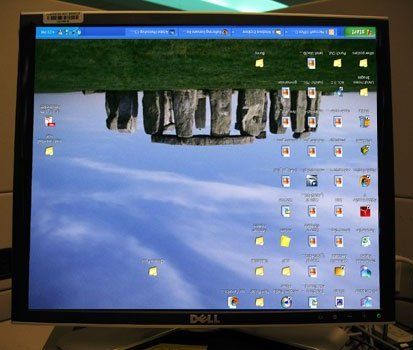
Want to drive you office workers crazy and have them standing on their heads? You can do simply by flipping their screens upside down. No, not literally flipping the monitor, you just need to push some keys on the keyboard when they step away from their computer for a second.
- Press [Ctrl]+[Alt]+[↑] at the same time




0